Auto Discount Display
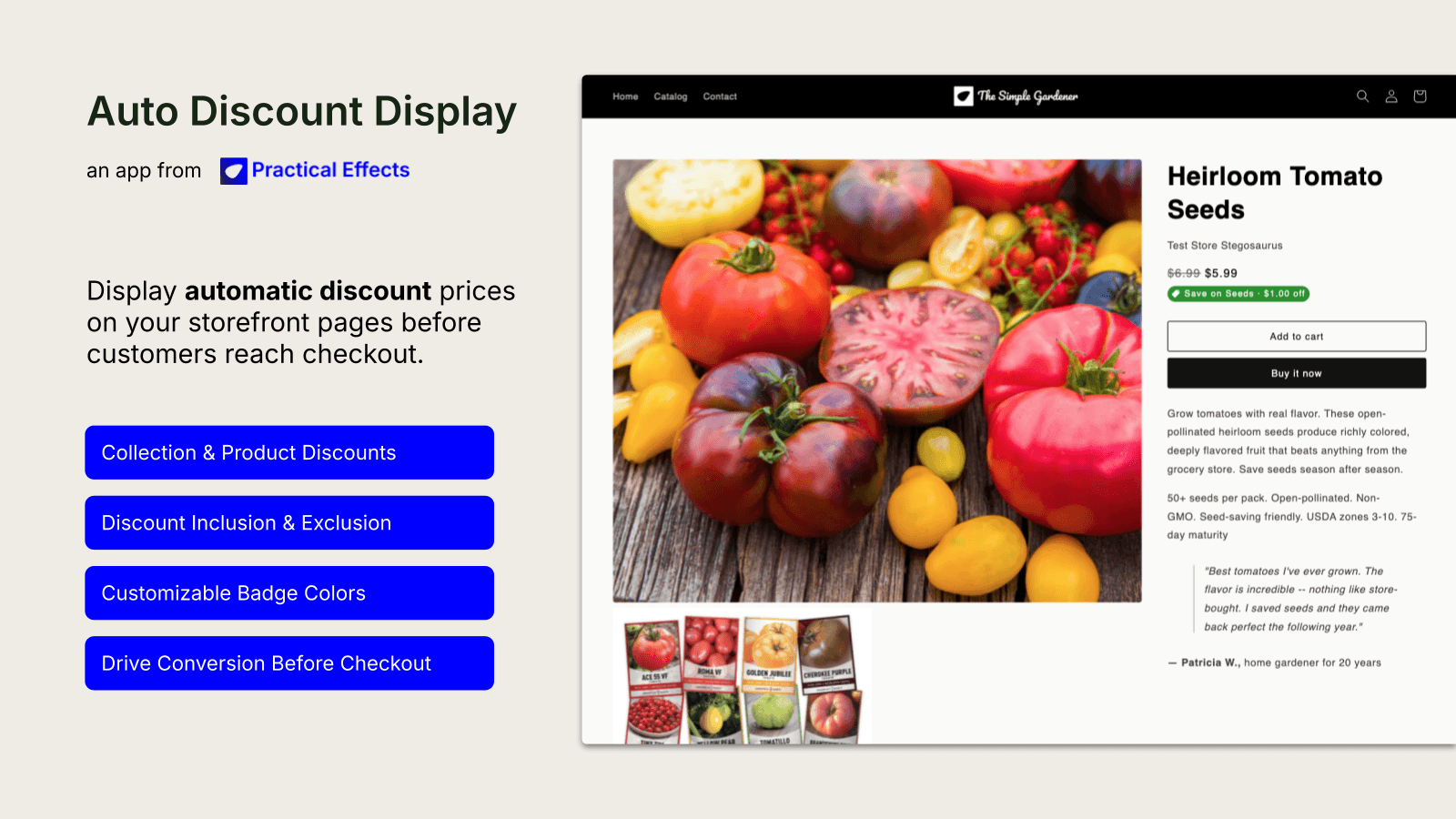
Auto Discount Display shows customers the real, discounted price while they shop. Natively, customers don't see Shopify's automatic discounts reach checkout.
Explore on the App Store
Shopify
Get Support
Email support@practical.nyc
Additional Code Snippets
Liquid app snippet for modifying app instance.
Getting started
Step 1: Install the app
Install Auto Discount Display from the Shopify App Store. A 14-day free trial activates automatically.
Step 2: Enable the app embeds
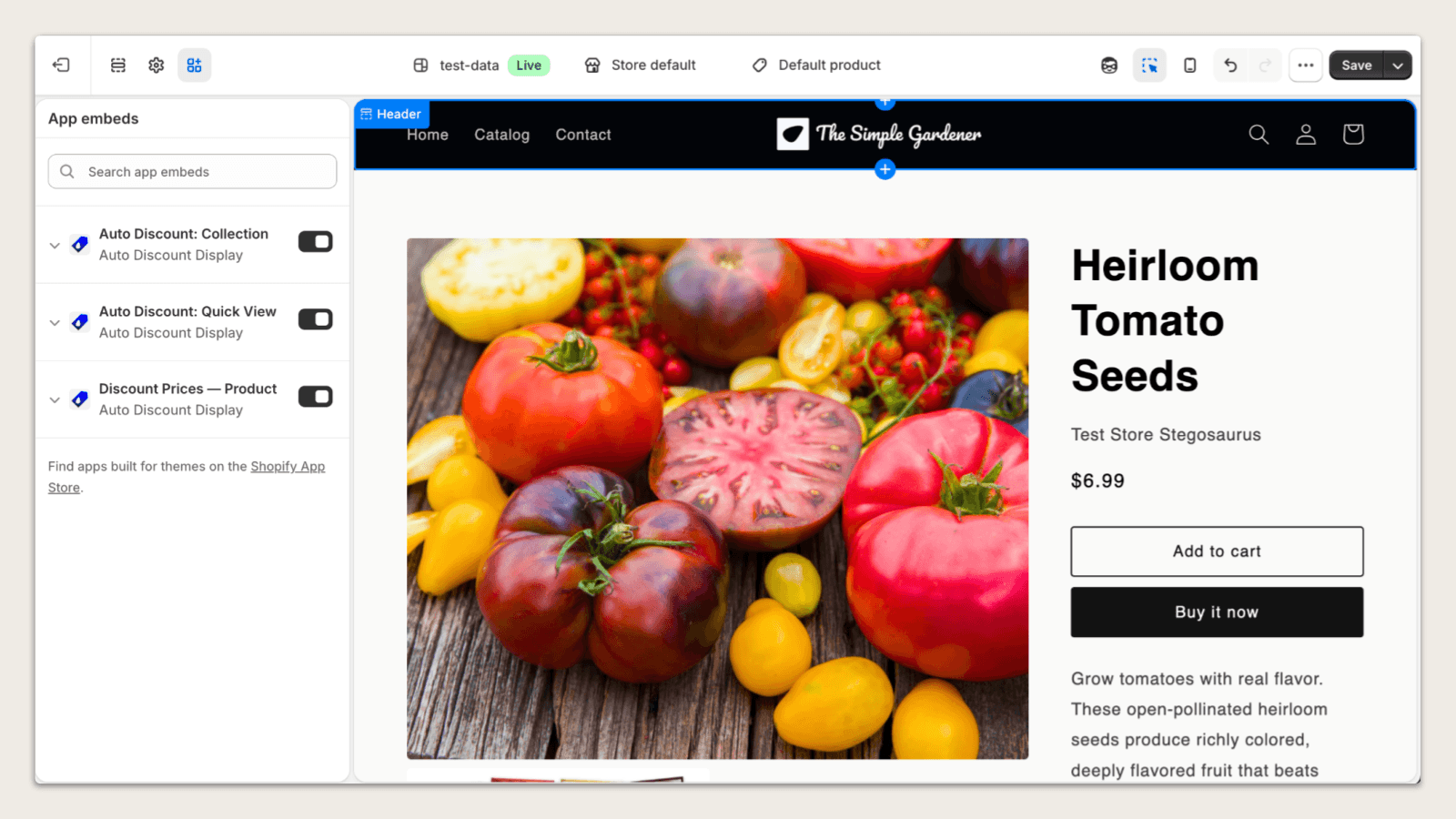
Go to Online Store > Themes
Click Customize on your active theme
Click App embeds (puzzle piece icon in the left sidebar)
Enable Auto Discount: Collection (powers collection pages, home pages, and infinite scroll)
Enable Auto Discount: Product (powers product pages)
Click Save
Step 3: Sync your discounts
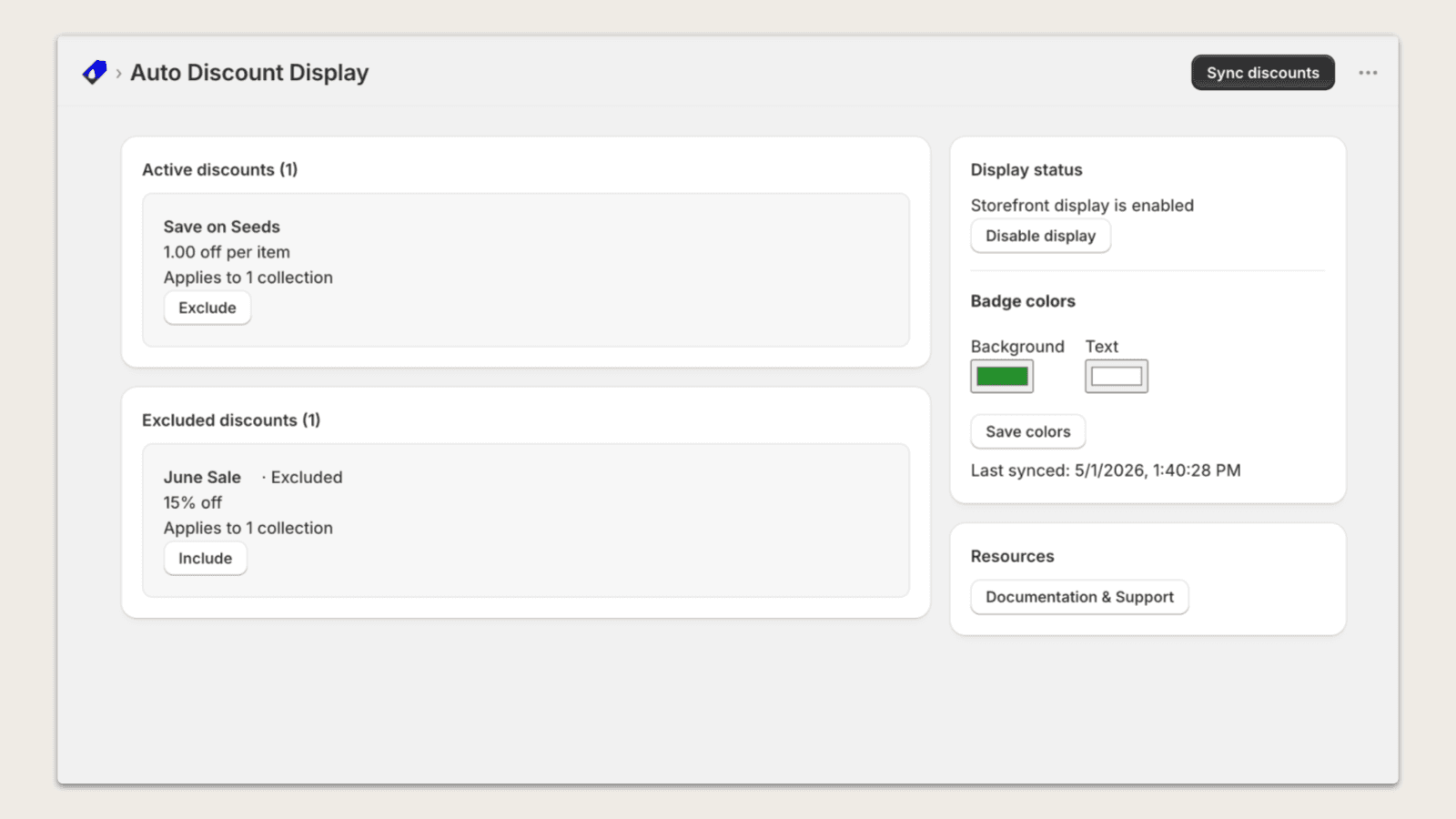
Open the Auto Discount Display app in your Shopify admin and click Sync discounts. This pulls your active automatic discounts from Shopify and makes them visible on your storefront.
Discounts also sync automatically whenever you create, update, or delete an automatic discount in Shopify.
Step 4: Modify for Page Builder Stores
Some page builders like Instant or Replo render pages outside Shopify's standard pipeline, which can prevent app embeds from loading even when enabled. If discount badges don't appear after the above steps, you may need to install a standalone code snippet to modify your custom pages.
Download the code snippet (a Liquid file) from the menu above, and copy it to your theme's snippets/ folder (Online Store → Themes → ⋯ → Edit code → Snippets → Add a new snippet). Name this snippet auto-discount-display.liquid in your editor.
In layout/theme.liquid, add this render tag just before </body> toward the end of the file, but before the final HTML tag:
Dashboard overview
Active discounts
Shows all automatic discounts currently synced from Shopify. Each discount displays its name, type, value, and scope.
Click Exclude to hide a discount from storefront display without deleting it in Shopify. Excluded discounts can be re-enabled at any time. Note that if two discounts apply to a product and you exclude one of them, your storefront may display a different price than is displayed in cart. Use Exclude with discretion.
Display status
Enable / Disable — turns all discount badges on or off across your storefront
Badge colors — customize the background and text color of the discount badge
Save colors — applies your color changes to the storefront
Last synced — shows when discounts were last pulled from Shopify
Resources
Links to documentation and support page here.
Badge customization
The discount badge appears below the discounted price on each product card and product page. It shows the discount name and amount, for example: Summer Sale - 20% off or Welcome10 - $10.00 off.
To change badge colors:
Go to the app dashboard
Click the Background color swatch and choose a color
Click the Text color swatch and choose a color
Click Save colors
Changes appear on your storefront immediately.
Quick view support (optional)
If your theme includes a quick view or quick add modal, you can show discount badges inside it:
Go to Online Store > Themes > Customize
Navigate to your theme's quick view section (check your theme documentation for its location)
Add the Auto Discount: Quick View block
If you are not using Dawn, update the Quick view container selector setting to match your theme's quick view element. Check your theme's HTML source for the correct value.
Click Save
This block is optional. If your theme does not include a quick view feature, you do not need to install it.
How discounts are matched
For each product, the app:
Ignores expired discounts
Ignores excluded discounts
Finds all discounts that apply to that product
Shows the one that produces the lowest price, consistent with Shopify logic
Displays the original price normally if no discount applies
Supported discount types
Percentage (e.g. 10% off)
Fixed amount (e.g. $20 off)
Supported discount scopes
All products
Specific products
Specific collections
Buy X Get Y, free shipping, and app-managed discounts are not supported and are automatically ignored.
Multi-currency
Percentage discounts work correctly in all currencies.
Fixed-amount discounts are displayed when the customer's display currency matches your store's base currency. If the currencies differ, the fixed-amount badge is not shown rather than showing an incorrect price. Percentage discounts are not affected.
Limitations
Quick view modals require placing the optional quick view block in your theme editor. The container selector may need to be adjusted for non-Dawn themes.
Buy X Get Y discounts are not supported.
App-managed discounts created by other Shopify apps are not supported.
Free shipping discounts are not supported.
Non-Dawn themes — the app works with most major Shopify themes but is optimized for Dawn. Contact support if you experience display issues.
Fixed-amount discounts in multi-currency stores are only shown when the customer's display currency matches the store's base currency.
FAQ
Why don't I see discounts on my storefront?
Confirm both app embeds are enabled in your theme editor
Confirm the display is enabled in the app dashboard
Click Sync discounts in the app dashboard
Check that the discount is not in the Excluded discounts section
Why is a discount showing on the collection page but not the product page? Make sure the Auto Discount: Product embed is enabled in your theme editor alongside the Collection embed.
What happens if I have multiple active discounts? For each product, the app shows the discount that produces the lowest price. This matches how Shopify applies discounts at checkout.
Does this work with compare-at prices? Yes. If a product already has a compare-at price in Shopify, the automatic discount is applied on top of the sale price and displayed correctly.
Does this affect my actual prices or checkout? No. The app only changes what is displayed on your storefront. Your prices, checkout, and Shopify discount settings are never modified.
What happens if I delete a discount in Shopify? The discount is automatically removed from your storefront display. No manual sync is needed.
Can I hide a discount without deleting it? Yes. Click Exclude next to the discount in the app dashboard. It will be hidden from your storefront but remain active in Shopify. Click Include to show it again.
Keep up with the latest.
Follow us on social media and subscribe on Substack for the latest insights from Practical.